Upload Reels and Shorts without losing quality: the export settings
Why platforms blur your videos, the official YouTube, Instagram and TikTok specs, iPhone and Android settings, CapCut export presets and an upload checklist.
 Alexey ShmidtProduct and marketing at Monty
If your reel looks crisp in the camera roll and soft on the feed, the platform is only half the story. Every upload gets re-encoded, so some loss is guaranteed. The other half is what happens before the file ever reaches the server: an HDR clip graded for nobody, a bitrate set to the editor's default, a file that already went through a messenger once. I ran an ad agency in St. Petersburg for years, and the first question on every blurry client video was the same: where is the original?
The short answer: one export that survives every feed
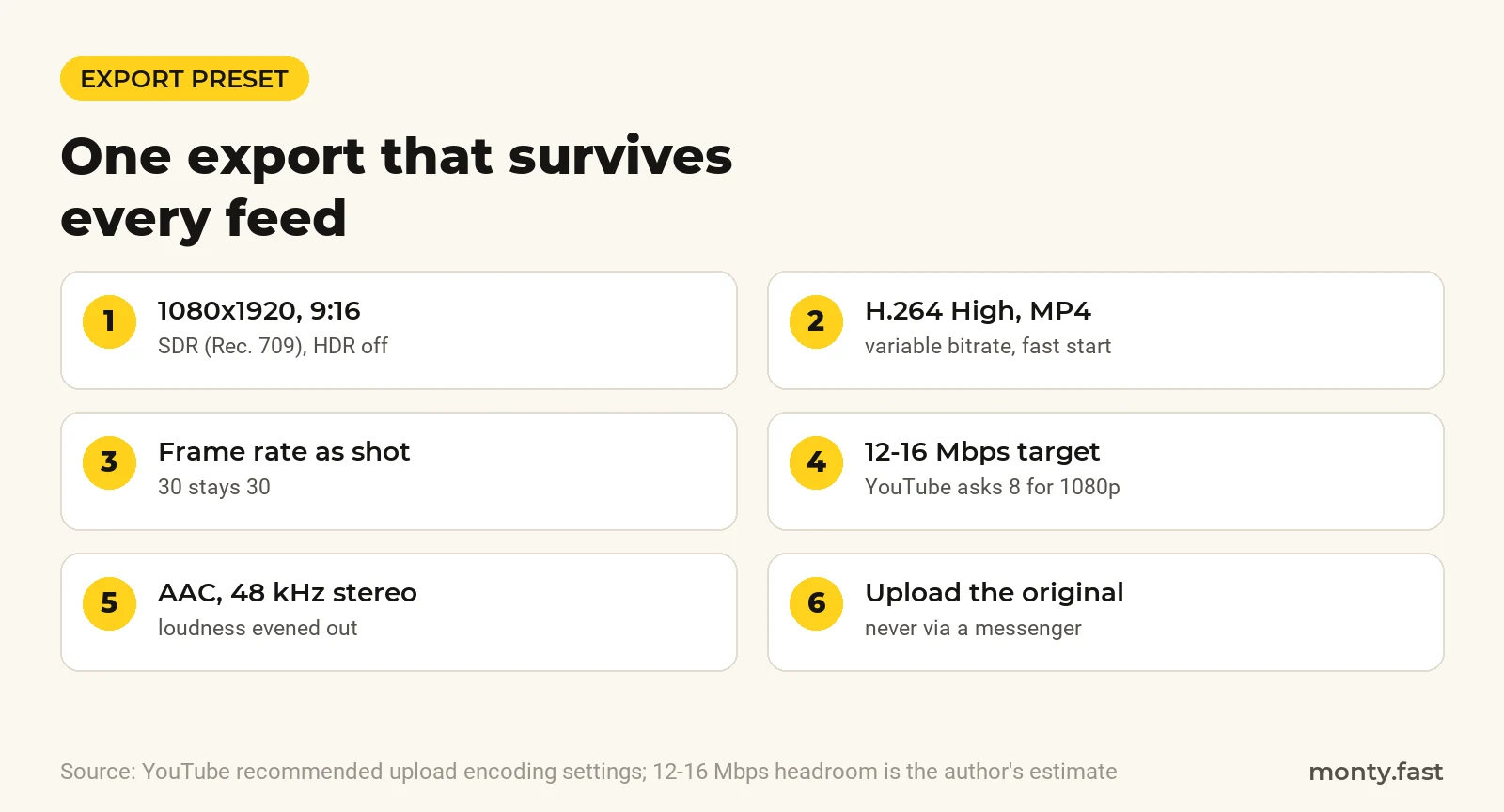
If you only want the preset, here it is. The reasoning and the official sources follow below.
- Frame: 1080x1920, 9:16, SDR (Rec. 709). HDR off unless you are posting only to YouTube with proper HDR metadata.
- Codec: H.264 High Profile in an MP4 container, variable bitrate, fast start (moov atom at the front).
- Frame rate: whatever you shot, usually 30. Do not convert 30 to 60.
- Bitrate: 12-16 Mbps for 1080p30 talking heads, 16-20 Mbps for fast motion. This is my own margin above YouTube's official 8 Mbps floor.
- Audio: AAC-LC, 48 kHz, stereo.
What each platform actually publishes (and what it does not)
Plenty of blogs quote a precise Instagram bitrate. Meta does not publish one for organic Reels. Here is what the official pages say, with gaps marked honestly. For aspect ratios and sizes across every network, see our social video specs sheet.
| Platform | Official spec | Bitrate | File limit |
|---|---|---|---|
| YouTube Shorts | Max 1080p for Shorts; H.264 High Profile, MP4, AAC-LC or Opus at 48 kHz; frame rate as recorded | 8 Mbps (1080p, 24-30 fps), 12 Mbps (48-60 fps); HDR 10 and 15 Mbps | Not stated on the encoding page |
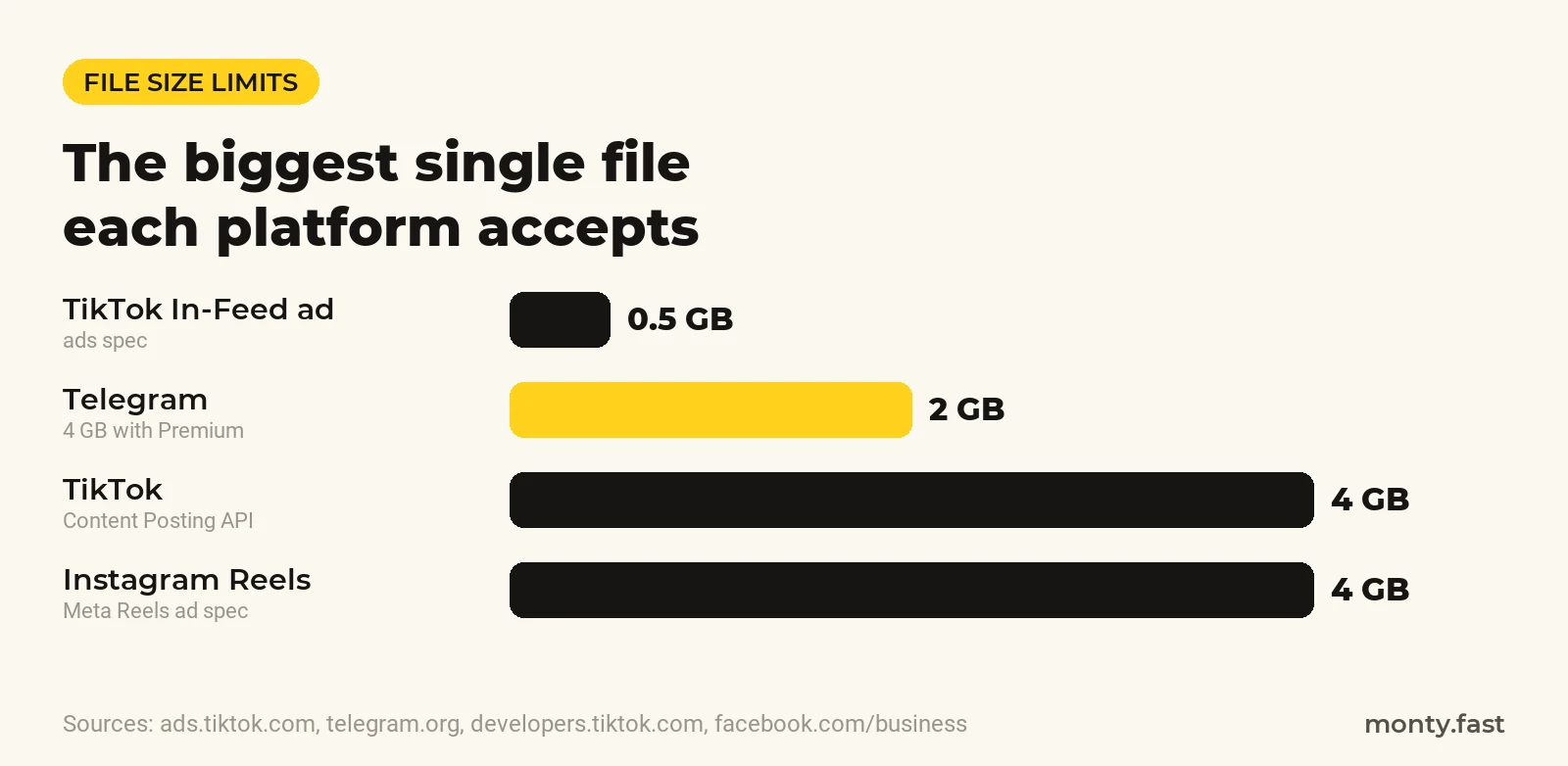
| Instagram Reels | Aspect 1.91:1 to 9:16; at least 30 fps and 720 px; ads spec: MP4/MOV, H.264, AAC stereo 128 kbps+ | Not published | 4 GB, up to 15 min (ads spec) |
| TikTok | MP4 and H.264 recommended, H.265 accepted; 23-60 fps; 360-4096 px per side | Not published for organic; ads need 516 kbps+ | 4 GB (developer API), 500 MB for In-Feed ads |
| Telegram | No published video spec | Not published | 2 GB, 4 GB with Premium |
Two details worth noticing. YouTube caps Shorts uploads at 1080p, so a 4K vertical export buys you nothing except upload time. And Meta's own ad spec recommends 1440x2560 for Reels ads, but Instagram's help center only sets a 720 px floor for regular reels. A clean 1080x1920 file sits comfortably between the two.
Why your upload looks worse than your camera roll
Platforms transcode your file into a ladder of versions and pick one per viewer and connection. Meta's engineers wrote in 2022 that Instagram's basic encodings used to eat more than 80 percent of video compute, while the sharper advanced encodings covered only 15 percent of watch time. They cut basic encoding cost by 94 percent and moved the savings into advanced encodings.
Popularity matters too. In October 2024 Instagram head Adam Mosseri said the app aims for "the highest-quality video that we can", but drops a video to a lower-quality version if it goes unwatched for a long time and re-renders it if views spike again. He called it a sliding scale applied in aggregate. You cannot control that part. You can control how much detail the server has to start from.
Phone settings to fix before you hit record
Lighting and audio matter more than any setting here; I covered those in filming reels on a phone. These are the switches that affect compression.
- iPhone HDR: some models record Dolby Vision HDR. Instagram now preserves Dolby Vision metadata on iPhone uploads, per a 2025 Meta engineering post, but editors and other platforms often show HDR footage washed out or blown out. If one file goes everywhere, turn it off in Settings > Camera > Record Video > HDR Video.
- iPhone format: Settings > Camera > Formats. High Efficiency records HEVC, Most Compatible records H.264. HEVC is fine for capture; switch if your desktop editor stutters or shifts color.
- iPhone transfers: Apple notes media may be converted to H.264 on import to a computer. Turn on Keep Originals in the Photos settings to avoid a silent re-encode.
- Samsung HDR10+: lives under Camera > Video > Settings > Advanced video options. Samsung says it is unavailable at 60 fps and on the front camera; leave it off for social.
- 4K or 1080p: shoot 4K only if you plan to crop or punch in during the edit. Otherwise 1080p at 30 fps is plenty.
Editor export presets that do not sabotage you
CapCut hides quality behind one dropdown. Its export panel offers Recommended, Lower, Higher and Custom bit rate, and CapCut's help center says plainly that a higher bit rate preserves better image quality. Set Custom and type the value in Kbps: 12000-16000 for 1080p30. Keep the frame rate equal to your footage. CapCut will not offer 4K if every clip is 1080p, which is correct. If the desktop preview looks soft, check proxy mode: CapCut says it affects only the preview, and the export keeps full quality. My full workflow is in making Shorts in CapCut.
In iMovie, Apple lets you turn HDR off when you share the movie, which gives you an SDR file that behaves the same on every platform. In desktop editors like Premiere or DaVinci, the same rules apply: H.264, MP4, Rec. 709, VBR with a target in the 12-16 Mbps range, audio AAC at 48 kHz.
Upload habits that quietly ruin quality
- Turn on Instagram's highest-quality toggle: profile > menu > Your app and media > Media quality > Upload at highest quality. Instagram warns that uploads take longer. Turn Data Saver off while you post.
- Upload on stable Wi-Fi from the original export, never from a file you downloaded back from TikTok or Instagram. That file is already compressed once.
- Send files to clients and editors as cloud links. Chat apps re-encode videos sent as media; in Telegram, send as a file instead.
- Avoid screen recordings of your edit. Export from the app instead.
- Keep thin text away from the edges. Fine type breaks up first under compression, and UI covers the edges anyway. Check placement in the safe zone checker or the pixel guide on vertical video safe zones.
- Wait a few minutes after posting before judging. Higher-quality versions are often processed after the first playable one.
Where Monty fits
Monty takes a take from your phone (MP4 or MOV), cuts pauses and filler, places kinetic captions inside each platform's safe zone, cleans audio and masters loudness per platform, then publishes to YouTube Shorts, Instagram Reels, TikTok and Telegram with an approval step. You can also download the finished master and upload it anywhere yourself. Honest limits: it will not rescue a noisy, underlit clip, and it is not a manual timeline editor. The free plan covers 3 videos a month, paid plans start at $29 a month, and the beta is open to everyone.
Filming from a script? Use the free online teleprompter: paste the text, scroll it on any phone, no sign-up.
FAQ
Why does Instagram lower my video quality?
Instagram re-encodes every reel into several versions. Adam Mosseri said in October 2024 that videos unwatched for a long time drop to a lower-quality version and popular ones get re-rendered higher. Uploading with the highest-quality toggle off, HDR footage, or a file that went through a messenger makes it worse.
What bitrate should I export Reels and Shorts at?
YouTube recommends 8 Mbps for 1080p at 24-30 fps and 12 Mbps at 48-60 fps. Instagram and TikTok do not publish a bitrate for organic posts. I use 12-16 Mbps for 1080p30 as a margin for recompression.
Should I upload Shorts in 4K?
No. YouTube's help center says Shorts can be uploaded at a maximum of 1080p. Shoot 4K only if you need room to crop.
Should I turn off HDR on my iPhone?
If one file goes to several platforms or through a desktop editor, yes. Settings > Camera > Record Video > HDR Video.
Is H.265 (HEVC) OK for uploads?
TikTok accepts it and YouTube supports it for HDR, but H.264 is the codec YouTube, TikTok and Meta all recommend for standard uploads, so it is the safer default.
Sources
- 1.YouTube Help: Recommended upload encoding settings
- 2.YouTube Help: Get started creating YouTube Shorts
- 3.Meta Ads Guide: Instagram Reels video specs
- 4.TikTok for Developers: Content Posting API media transfer guide
- 5.TikTok Ads: Auction In-Feed ad specs
- 6.Engineering at Meta: Reducing Instagram's basic video compute time by 94 percent
- 7.Engineering at Meta: Enhancing HDR on Instagram for iOS with Dolby Vision
- 8.Telegram blog: 700 million users and Telegram Premium
Hey Monty. Make me a reel.
Try Monty freeKeep reading
Video Editing Cost Per Minute in 2026: Rates, Hours, Math
Per-finished-minute and hourly video editing rates from Upwork, BLS and 2026 industry guides, how many editing hours hide in one minute, and a worked monthly budget for a YouTube creator.
How to edit talking head videos: a pass-by-pass guide
Cut pauses over 0.5 seconds, change the frame about every 4 seconds, keep music 20 dB under your voice. The full edit order for talking-head shorts.
How to read a teleprompter naturally: 4 tells to fix
Scanning eyes, a flat voice, a speed that fights you, a lost place. The cause and fix for each tell, with a words-per-minute table and phone setups.
More in this category
- Captions in low-resource languages: the accuracy gap
- Vertical video safe zones, in pixels
- Social video specs in 2026: one export that fits every feed
- Reel covers and Shorts thumbnails: designed for the crop
- Filming reels on a phone: what matters and what does not
- Making Shorts in CapCut: the workflow, and its ceiling